1
Go to scoring and filtering tools
Open your Solar Capture admin area and navigate to the lead quality section where both wizards are available.
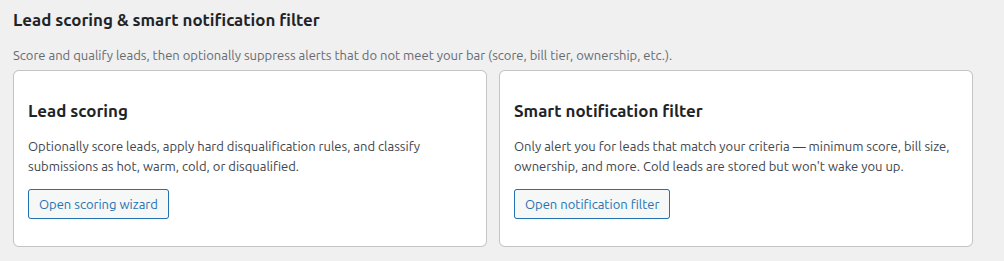
This guide walks through both Solar Capture wizards: first score each lead using weighted values, then apply filters and disqualifiers so your team focuses on the right enquiries.
Scoring adds a clear quality signal to each lead using your selected criteria. Filtering then lets you include, exclude, or route leads based on those scores and your own disqualifier rules.
Use both wizards together for the best result: score first, then filter.
Begin by opening the Lead Scoring wizard in Solar Capture. This is where you define how each answer contributes to a lead's overall score.
Open your Solar Capture admin area and navigate to the lead quality section where both wizards are available.
Adjust weighting values so high-value lead answers raise the score and weaker-fit answers reduce it.
Check each scoring rule and decide which criteria matter most for your business.
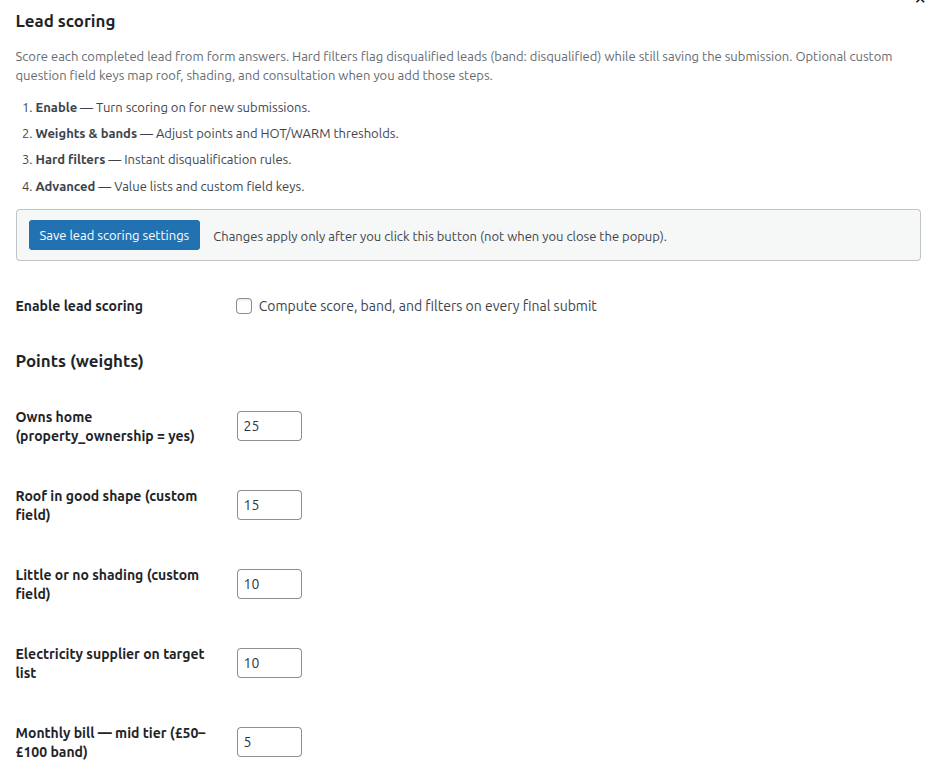
Save your settings and review a few recent leads to confirm scores are ranking leads in a useful order.
If needed, return to the wizard and fine-tune individual weighting values.
Once scoring is in place, use the filter wizard to control which leads progress and which are excluded.
Create explicit disqualifiers for leads that should never move forward, regardless of total score.
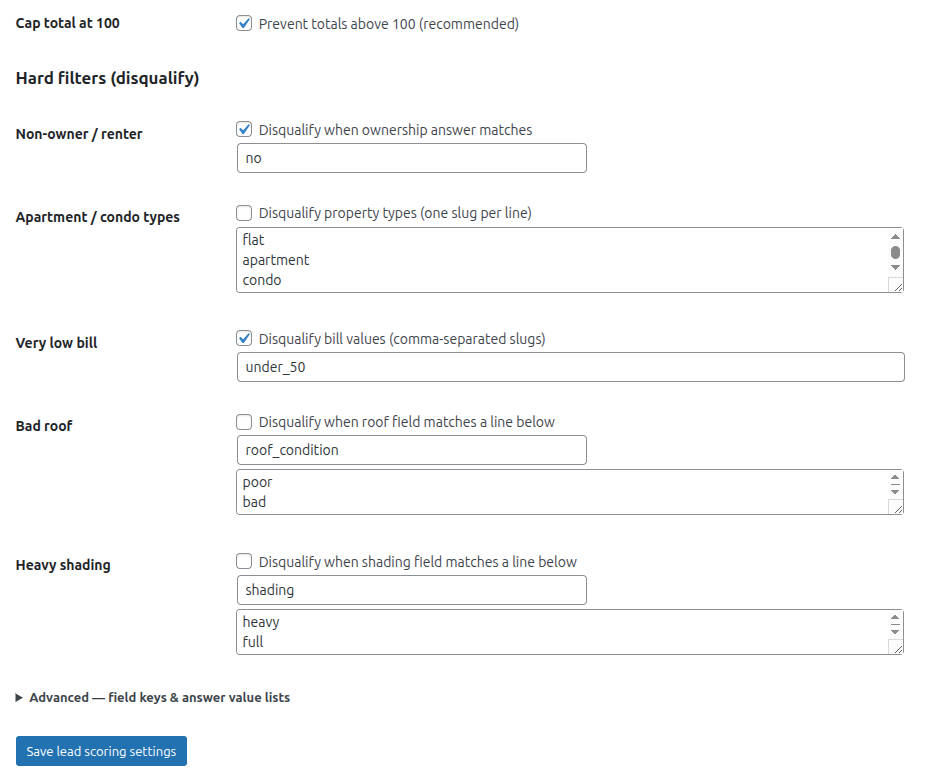
Set thresholds and filtering rules so your team receives the right leads at the right priority level.
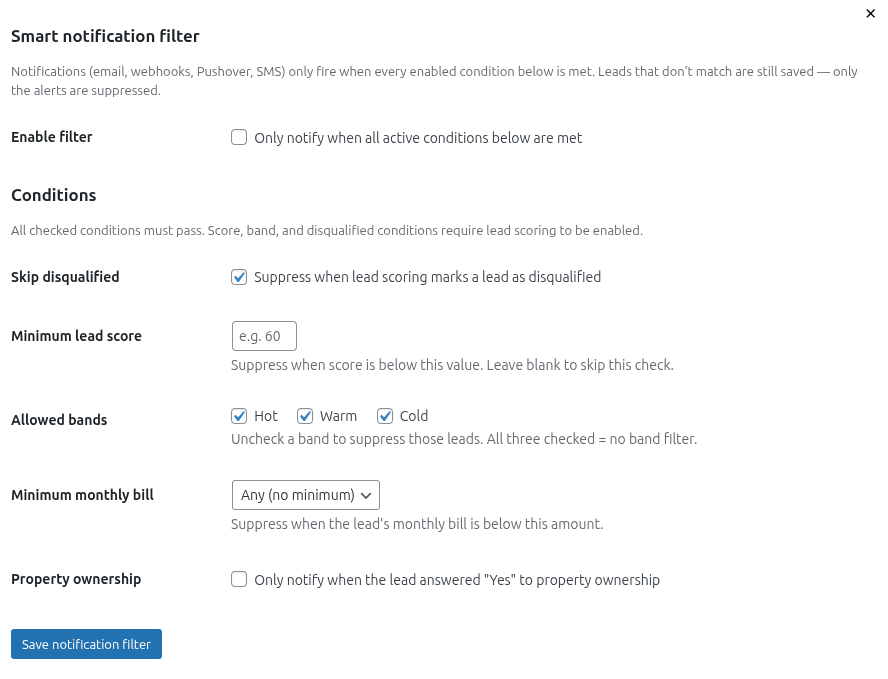
You have now configured lead scoring and filtering in Solar Capture.