Google Sheets sync

Connect Google Sheets and sync leads automatically

This guide walks through the full Solar Capture Google Sheets sync flow. Open the wizard, add the redirect URL to your Google credentials, connect the right Google account, and decide whether to use a new spreadsheet or an existing one.

One-way sync to Leads tab Google OAuth New or existing spreadsheet
What this setup does

Solar Capture pushes leads one way into Google Sheets. Your WordPress site remains the source of truth, and synced leads land in a single Leads tab.

https://yourdomain.com/wp-admin/admin-post.php?action=solar_capture_sheets_oauth_callback

Use the exact redirect URL shown in your wizard. It must match your Google credentials exactly.

Important note

Setup is usually instant, but in rare cases Google can take a few hours for the redirect or API changes to take effect. If it does not work straight away, grab a coffee or continue with other integrations and come back later.

1Open the Sheets wizard
2Add redirect URI + enable Sheets API
3Connect Google and choose sync target
Google Sheets sync Connect, authorize, sync
Google Sheets sync section in Solar Capture settings

Part 1

Open the Google Sheets wizard

Start in Solar Capture settings, scroll to Google Sheets sync, and launch the guided setup.

1

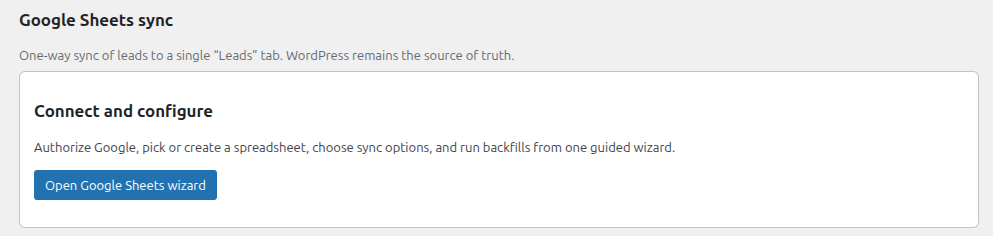
Open Google Sheets sync in settings

Head over to Setup in Solar Capture settings and scroll to Google Sheets sync.

  • Look for the section that explains the sync goes into a single Leads tab.
  • Click Open Google Sheets wizard.
Google Sheets sync section with button to open wizard
Open the Google Sheets wizard from the Google Sheets sync section in Solar Capture settings.
2

Review the wizard instructions

The wizard shows the exact redirect URL you need, along with shortcuts to your Google credentials and the Sheets API page.
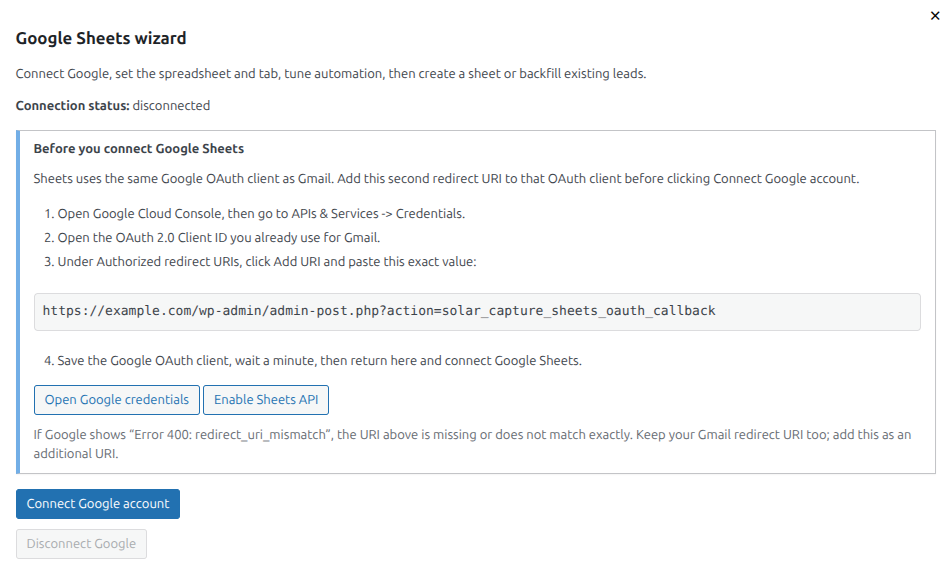
  • Click Open Google credentials.
  • Click Enable Sheets API if you have not already done so.
Google Sheets wizard showing redirect URL and setup buttons
The wizard provides the redirect URL and the two Google setup actions you need.

Part 2

Update Google credentials and enable the API

Google Sheets uses the same Google OAuth client as Gmail. Add the Sheets redirect URL as an additional authorized redirect URI, then make sure the Sheets API is enabled.

3

Add the new redirect URL

In Google Cloud Console, open APIs & Services → Credentials and edit the OAuth client you already use for Gmail.
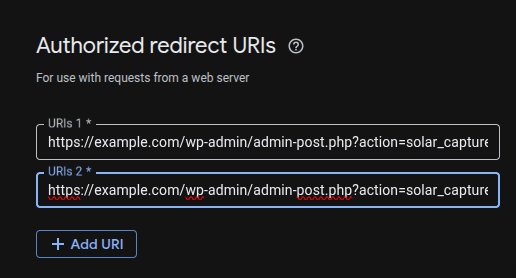
  • Under Authorized redirect URIs, click Add URI.
  • Paste the exact value shown in the wizard.
  • Keep your existing Gmail redirect URI too. This is an additional URI, not a replacement.
Authorized redirect URIs screen in Google Cloud Console
Add the Sheets redirect URI as a second authorized redirect URI on the same OAuth client.
4

Enable the Sheets API

If the Sheets API is not already enabled in your Google project, enable it before you try to connect your account.

  • Use the Enable Sheets API button in the wizard for the fastest route.
  • Wait a minute after saving your OAuth changes if Google needs a moment to catch up.
Wizard showing enable sheets API button
Use the wizard shortcut to open the Sheets API page and enable it if needed.

Part 3

Connect your Google account

Once your redirect URI and API setup are done, return to the wizard and connect the right Google account.

5

Click Connect Google account

Back in the wizard, click Connect Google account.

  • Choose the relevant Google account if you are prompted.
  • Click Continue.
  • Click Allow.
Connect Google account button inside the wizard
After your Google configuration is ready, connect the Google account that should own the spreadsheet sync.

Part 4

Choose your spreadsheet setup

Now decide whether Solar Capture should create a new spreadsheet for you, or sync with a tab in an existing leads sheet.

6

Enable Google Sheets sync

Tick Enable Google Sheets sync in the wizard.
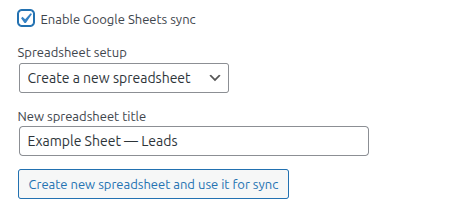
  • Choose Create a new spreadsheet if you want Solar Capture to make a fresh sheet for you.
  • Or choose the option to sync with an existing spreadsheet tab.
Enable Google Sheets sync and create new spreadsheet option
Enable sync, then choose whether to create a new spreadsheet or use an existing one.
7

Using an existing spreadsheet? Copy the Sheet ID

If you are syncing with an existing spreadsheet, copy the URL segment after /d/ and before /edit. That string is your Sheet ID.

https://docs.google.com/spreadsheets/d/THIS_IS_YOUR_SHEET_ID/edit#gid=0

The first sync can take a few minutes. After that, syncing is usually more or less instant.

Google Sheets URL showing where the spreadsheet ID appears
Copy everything between /d/ and /edit to get your Sheet ID.

Part 5

Backfill old leads or retry failed syncs

If you already had leads before turning on the integration, or if a sync ever fails, you can run a manual action from the sync controls.

8

Backfill and retry tools

You can manually send older data or rerun failed items whenever needed.

  • Backfill all leads pushes existing leads into the sheet.
  • Queue retry for failed syncs reruns any entries that did not sync because of a temporary server issue.
  • This usually happens automatically, but the buttons are there if you need them.
Buttons for backfill all leads and queue retry for failed syncs
Use these tools for historical imports or to rerun failed sync attempts.
9

Save your settings

Once everything looks right, click Save. Your Google Sheets sync is now ready.

From here on, new leads should sync automatically into your chosen spreadsheet and tab.